01. The problem
Inventory had outgrown the tools managing it
Every vehicle Curbie sold passed through acquisition, operations, a mechanic, a photographer, marketing, and sales. None of the tools they used were built for that whole journey, so the work was spread across all of them, and the same details had to be entered in more than one place.
- The vehicle’s details get typed in again, because the next team works in a different tool.
- No one place shows where a vehicle is, so finding out means asking around.
- Costs build up in different places, so the real total is hard to see.
- The listing is put together by hand from details and photos that already exist elsewhere.
- Sales works from what’s been passed along, which may not reflect the latest change.
- Duplicate data entry: the same vehicle information was typed in again for each tool, which took time and gave errors more places to creep in.
- Too many tools: getting one vehicle ready meant moving between tools, with no single place to see all of it.
- It wouldn’t scale: every added vehicle added more manual work, so the process couldn’t grow at the rate the company wanted to.
The goal
Give internal teams one dedicated tool to add, update, monitor, and track every vehicle, so its details are entered once and the process can grow with the company.
02. The workflow
Designing the whole journey, not a set of screens
This was a much bigger problem than a single feature. A vehicle has a long life inside the company, and each stage needs different information from different people.
Watching the work
I talked with people across the teams and watched how they actually worked: what they did at each stage, which tools they had open, and what they needed from the people before and after them.
Handoffs were the slowest part
Vehicles sat waiting because the next team didn’t know it was their turn, not because the work itself took long.
Getting a car ready meant updating the same details in several places, then messaging everyone who needed to know. Miss one, and nobody knew.
The same details, entered again and again
Laying out who entered each detail and who needed it made the duplication impossible to miss. Several teams needed the same information, and each one was keeping its own copy.
| Vehicle detail | Acq | Ops | Mech | Photo | Mktg | Sales | Times |
|---|---|---|---|---|---|---|---|
| VIN, year, make, model | 4× | ||||||
| Purchase and repair costs | 3× | ||||||
| Condition and inspection | 2× | ||||||
| Status and location | 5× | ||||||
| Photos | 2× | ||||||
| Price | 4× | ||||||
| Features and description | 1× |
| Vehicle detail | Acq | Ops | Mech | Photo | Mktg | Sales | Times |
|---|---|---|---|---|---|---|---|
| VIN, year, make, model | 1× | ||||||
| Purchase and repair costs | 2× | ||||||
| Condition and inspection | 1× | ||||||
| Status and location | 1× | ||||||
| Photos | 1× | ||||||
| Price | 1× | ||||||
| Features and description | 1× |
A simple question with no quick answer
The clearest example was also the most common one: is this vehicle ready to list? Nothing could answer that on its own, so people answered it for each other.
FlowWhat it took to answer “Is it ready to list?”
One record, built around every team
The teams didn’t need the same screen. They needed different parts of the same vehicle, so the structure of the tool came from who owns what.
MapWhat each team adds to the record, and gets back
The design decision
Organize the profile by kind of work, with one tab for each. Each team can go straight to its part, on the same record as everyone else.The trade-off
A tool that serves six teams shows each of them things they don’t need, and a single record means agreeing on who owns what. That’s worth it to have one version of every vehicle.03. The core model
One vehicle, two statuses
Two questions kept coming up about every vehicle: where is it in our process, and what can shoppers see? Those are separate questions, so they got separate statuses.
The design decision
Keep internal and external status as two separate fields, both visible at the top of every vehicle. Nobody has to work out one from the other.Readable at a glance
Each status has its own coloured dot, so someone scanning a long inventory list can pick out where vehicles stand without reading every row.04. Adding a vehicle
Start from the VIN, not a blank form
Duplicate entry was the biggest pain, so it was the first thing to design out. Most of what a new vehicle needs can be worked out from its VIN.
FlowThe three outcomes of entering a VIN
The design decision
Ask for the VIN first and use it to fill in the year, make, model, trim, specs, and likely features. Staff check the details and add what only they know, like mileage.Fields filled in from the VIN are highlighted, so staff can see what to check.
Duplicates caught early
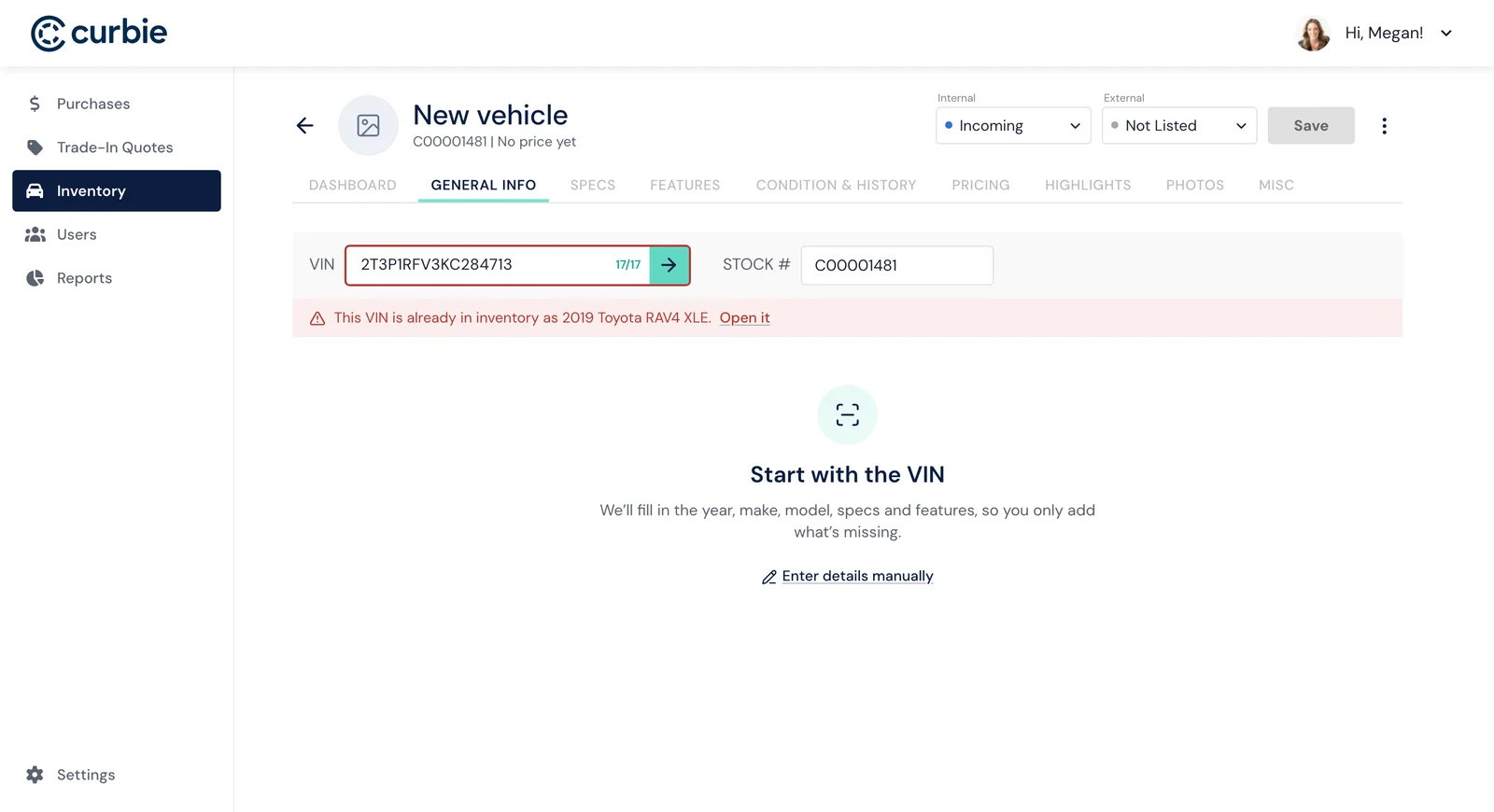
If the VIN is already in inventory, the tool says so straight away and links to that vehicle, so nobody starts a second record for the same car.
05. Getting it ready
A vehicle can’t go live until it’s ready
Several people contribute to a vehicle over days or weeks, so it’s easy to lose track of what’s still missing. The tool keeps track instead, and it won’t let an incomplete vehicle reach shoppers.
The dashboard says how many sections are done and continues with the next one. A progress pill beside the vehicle’s name opens to what’s left on every tab, and a dot marks each tab that still needs attention.
The design decision
Trying to publish too early doesn’t just fail. The tool lists what’s missing and takes you to the next section to finish.The trade-off
A hard requirement adds a step when a team is in a hurry to list a vehicle. It’s worth it, because an incomplete listing costs shoppers’ trust. Coming Soon gives teams a way to show a vehicle’s on its way before it’s ready for sale.06. The vehicle profile
Everything about a vehicle, in one place
The profile is the centre of the tool. Each team goes straight to its own part of the vehicle, and everyone works from the same record.
The vehicle’s details
General Info
General Info holds all of the vehicle’s details, each in a field staff can edit. It also tracks where the vehicle is: its inventory hub decides where it’s listed, while its current location can be a hub, the reconditioning centre, or in transit.
Specs
The full technical data sits in groups that open when needed, with the details people ask about most in a short summary beside them.
Features
Features lists everything the vehicle comes with, grouped by type: value adds, exterior, interior, tech, and safety.
The design decision
Features that match the vehicle’s year, make, model, and trim are already added. Staff only need to check or uncheck what’s different.Beyond the standard list
Value adds, like winter tires or floor mats, get their own group and appear on the listing. Anything missing can be added as a custom feature.What shoppers will see
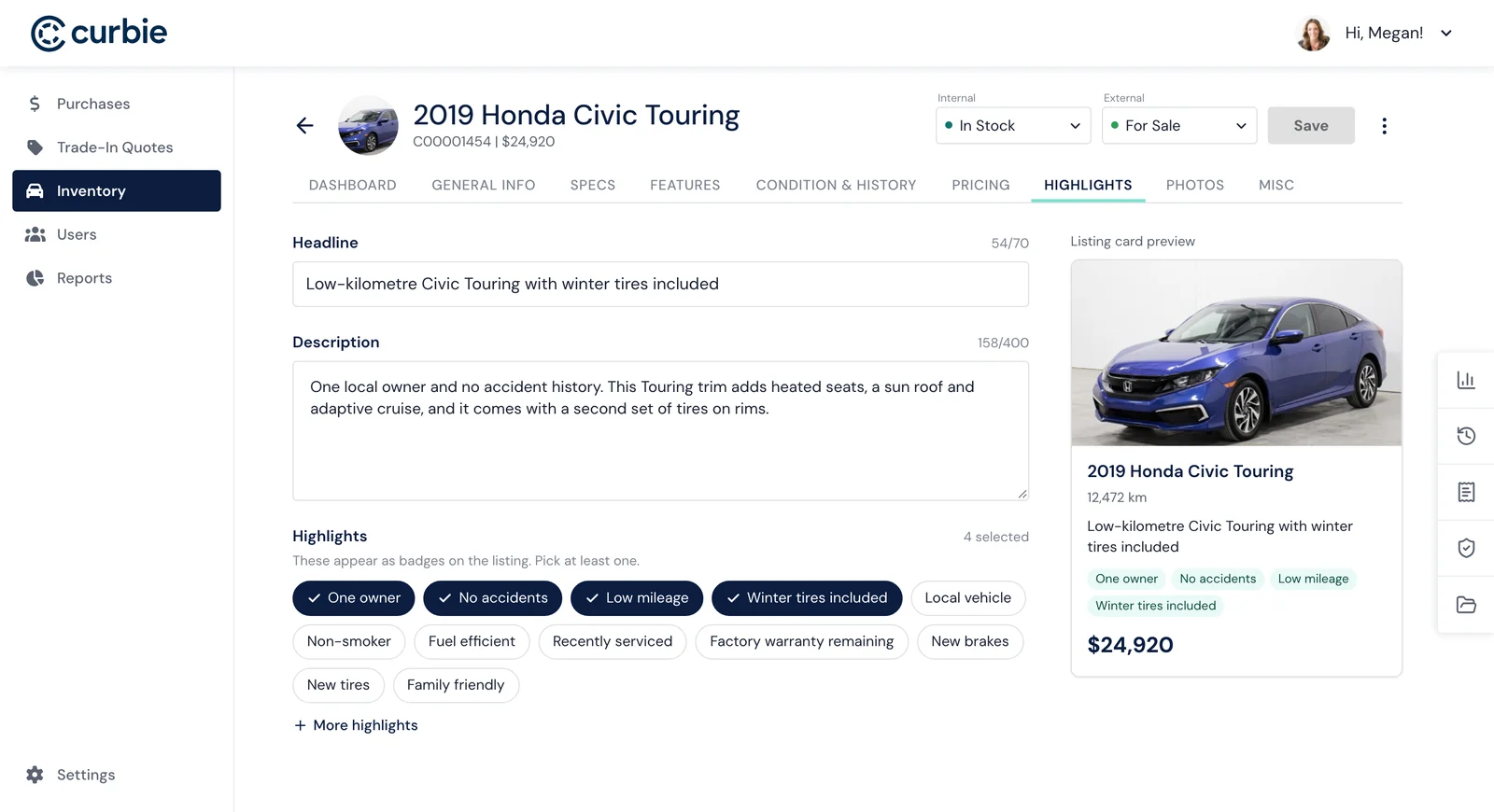
Staff write a headline and description, then choose highlight badges or add their own. A preview of the listing card updates as they go.
Picking highlights from every feature
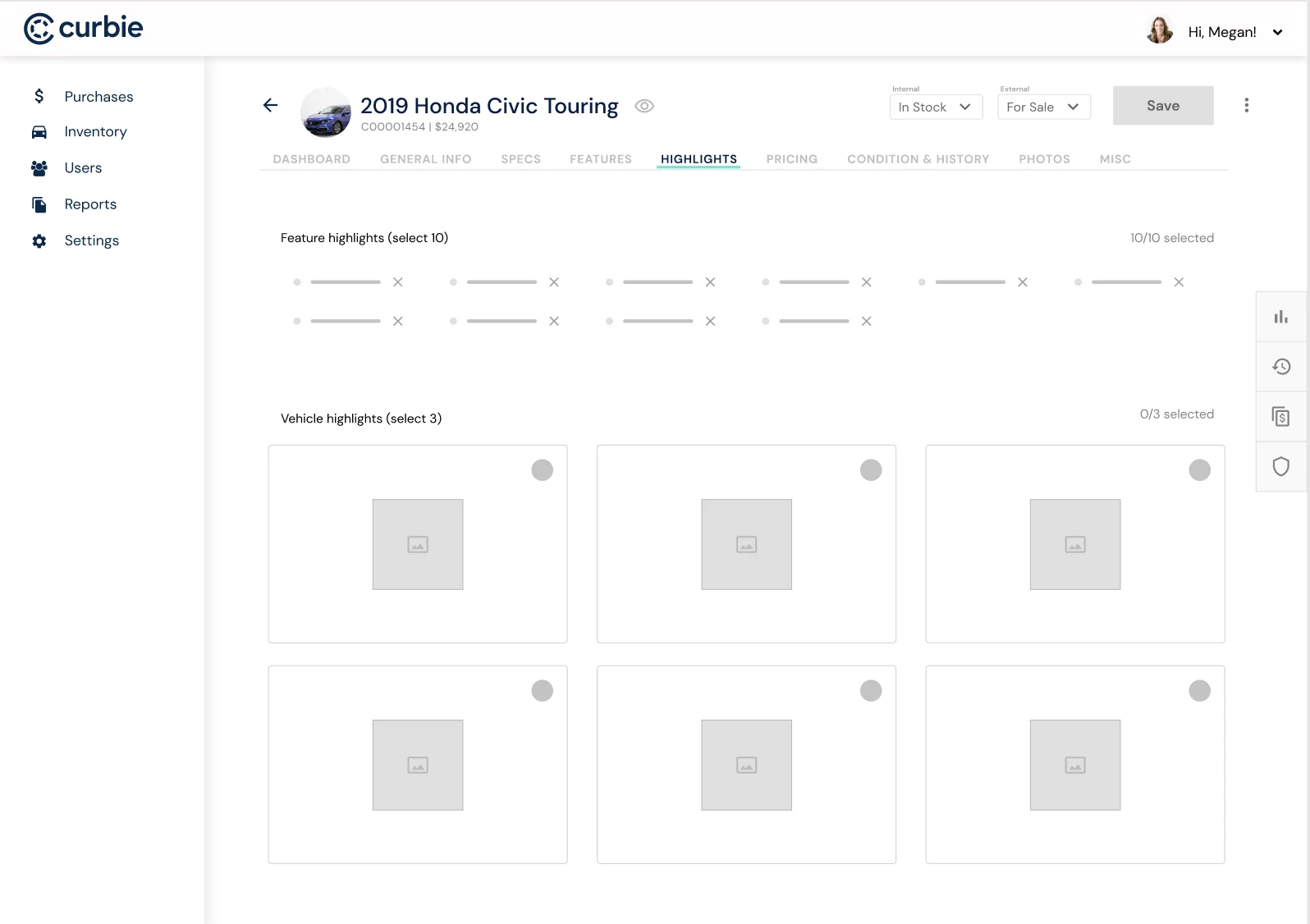
An earlier version had staff pick 10 feature highlights from the vehicle’s full list of features, plus 3 larger vehicle highlights.
Why I turned back
- It didn’t cover the whole listing.The headline and description weren’t part of it, so marketing still had to write them somewhere else.
- It was more work.Finding the right highlights meant going through every feature on the vehicle.
- The same ones kept getting picked.The team settled on the highlights that got the most clicks, like 0 accidents, so the choice rarely changed from one vehicle to the next.
Photos
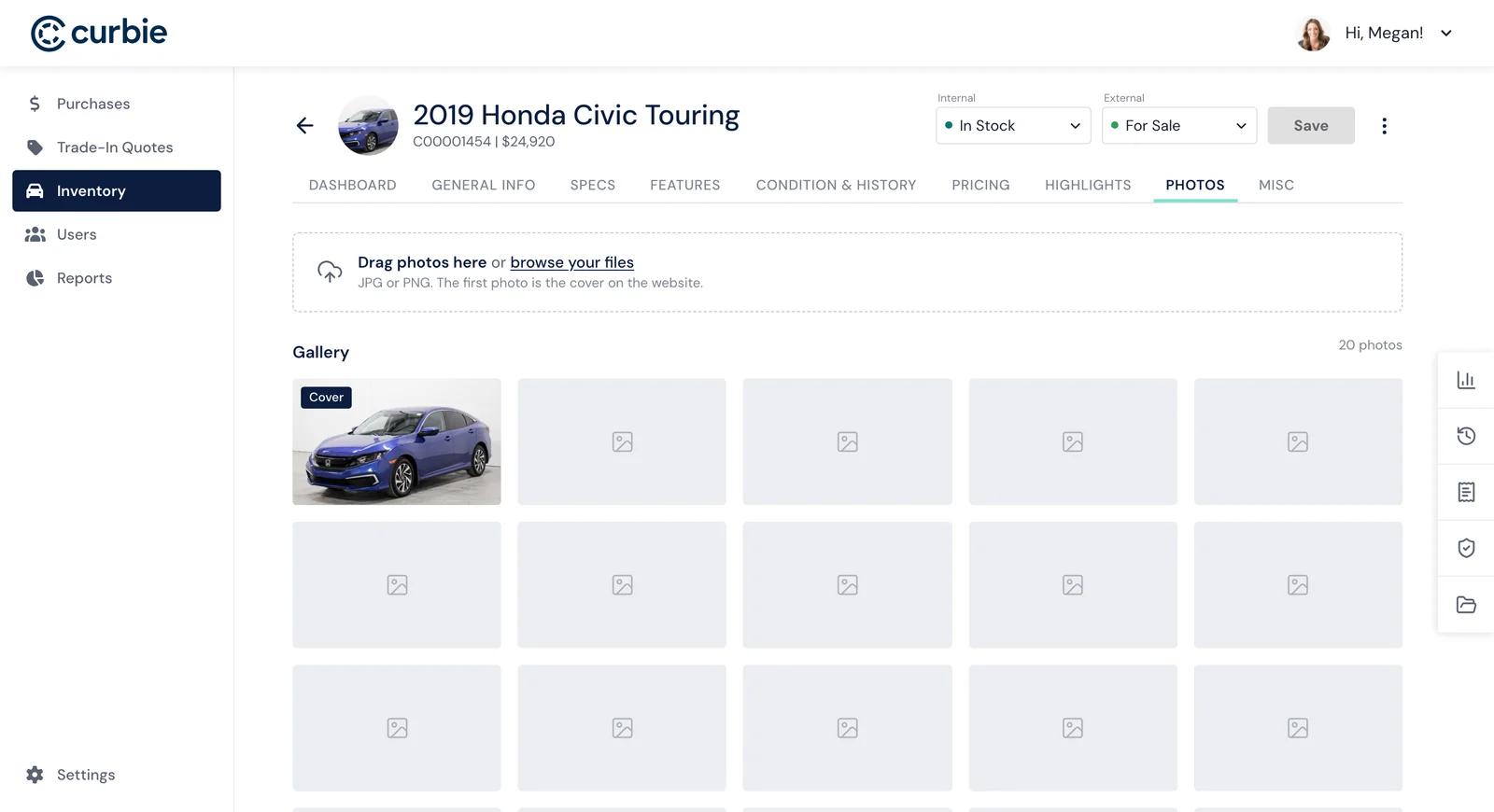
Staff drag photos in, put them in order, and choose the cover shown on the website. Each photo opens full size, and removing one can be undone.
07. Pricing
Setting a price with the numbers beside it
A price affects both Curbie’s profit and whether a vehicle sells, so the person setting it needs the costs and the market in view at the same time.
As staff enter the acquisition cost, reconditioning, and a market adjustment, the profit and suggested price update straight away. Curbie’s pricing model, MARVIN, and Canadian Black Book values sit beside them for comparison.
The design decision
Experimenting with the numbers never changes the list price. Applying the suggested price is a separate step, with a confirmation showing the change and the profit at the new price. Once confirmed, the new price applies right away, can be undone, and is logged in a price history with the date, the change, and who made it.How it compares to the market
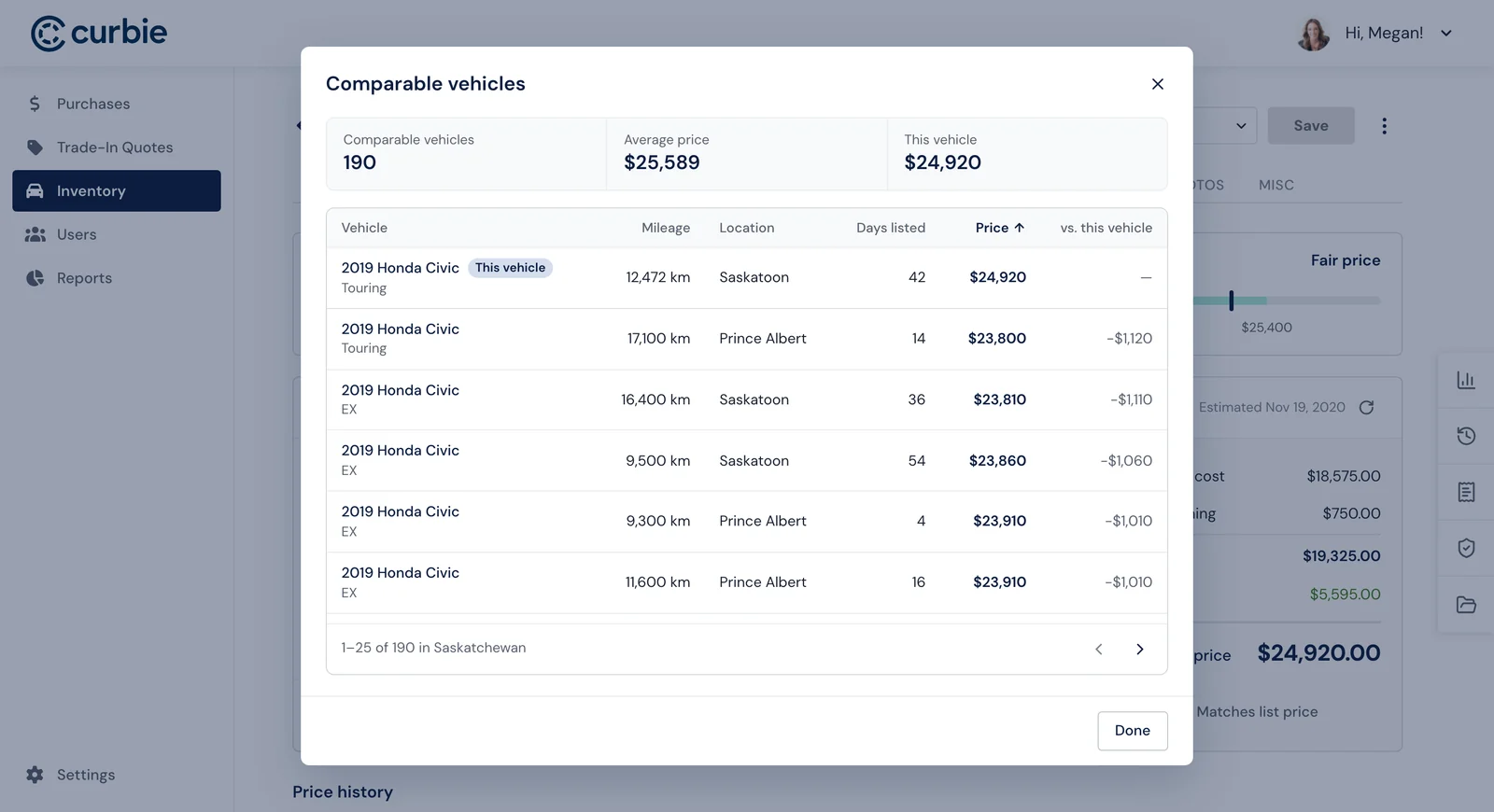
A market position bar shows at a glance whether the price is below market, fair, or above it. The market figures follow the selected province and can be refreshed, and the comparable vehicles behind them open in a sortable table.
When a price goes stale
Once a vehicle has been on the market for 45 days and is priced above the middle of its range, the tool suggests a price, and the vehicle’s dashboard links to it too. Using it goes through the same confirmation, so a suggestion never changes the price on its own.
08. Condition and history
The paperwork lives with the vehicle
A vehicle’s records come from different places, but the people working on it need them together, on the vehicle itself.
The 240 point inspection is attached as a file, and the profile shows who added it and when. More files can be added beside it, and each one can be opened, downloaded, replaced, or removed from its row.
The design decision
Paste a Carfax link and the tool imports the accidents, owners, service records, and in-service date, then works out a vehicle grade. It’s one more place nobody has to retype.Provincial inspections
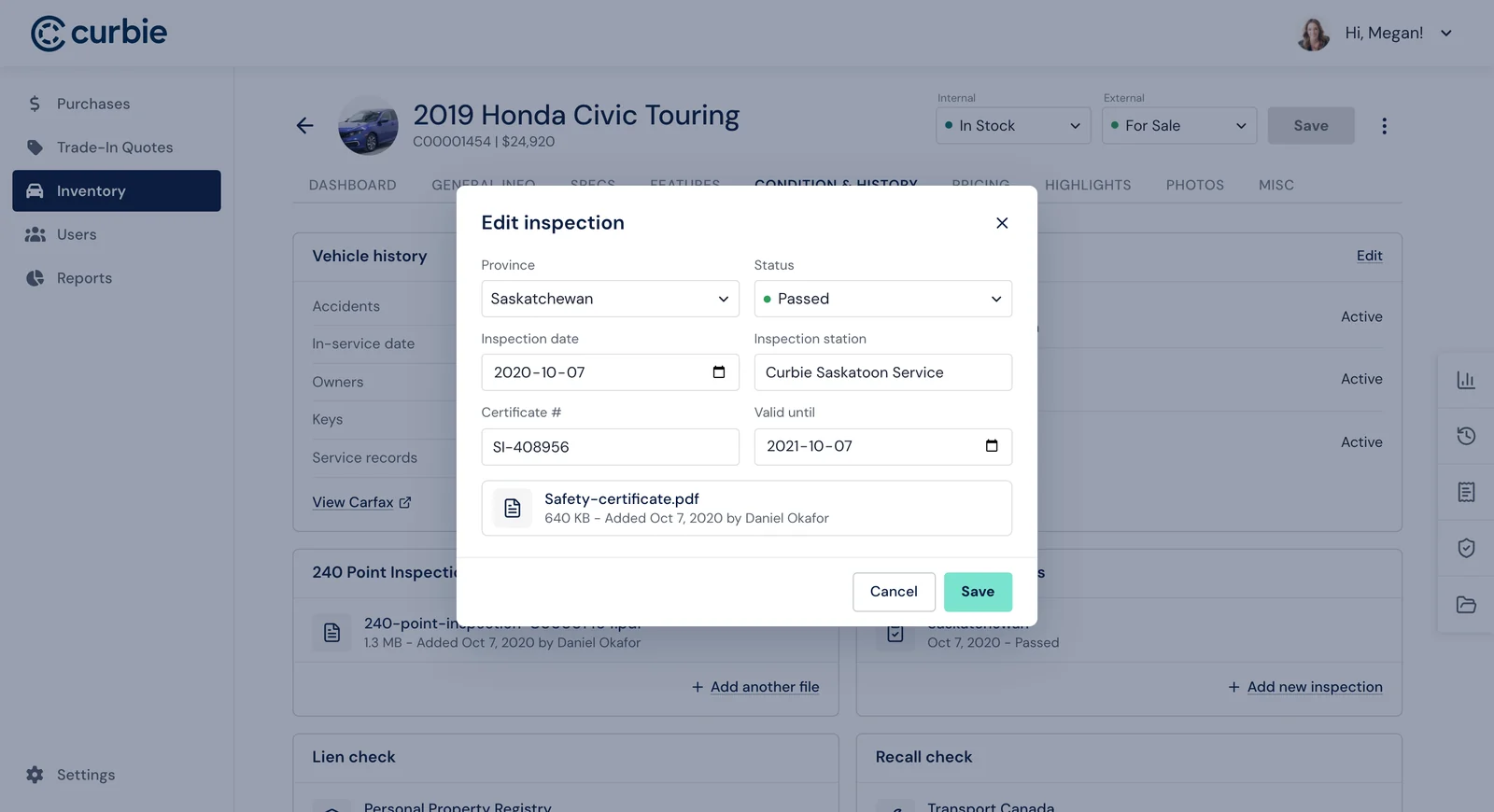
A vehicle can have an inspection for each province it might be sold in. Each one records its status, date, station, certificate number, expiry, and certificate, and shows as a single row until someone needs the details. Once a pass runs out, it shows as expired.
Warranty, recalls, and liens
- WarrantyEnter the length and kilometre limit for the drivetrain, manufacturer, and any extended coverage, and the tool works out whether each one is active, expired, or over its limit.
- Recalls and liensEach check records its result, date, source, reference number, and report, and stays on the vehicle. Any problem it finds is flagged.
09. Monitor and track
From one vehicle to the whole inventory
Setup is only half of it. Once a vehicle is in the system, teams need to find it, see how it’s doing, and know what’s changed.
The inventory table
This is where every team starts. Filter by status, province, hub, make, body type, website status, or setup progress, search by name, VIN, or stock number, and sort any column. The status column shows the external status for vehicles on the website and the internal one for everything else.
The design decision
Bulk actions follow the same rules as a single vehicle. Each selected vehicle gets its own statuses in one dialog, For Sale stays unavailable until setup is finished, and a summary says how many will go on the website. The change can be undone straight after.Reserved vehicles
Vehicles with a sale pending can’t be selected for bulk actions, and Sale Pending isn’t offered there either.A dashboard that follows the vehicle
Before a vehicle is listed, its dashboard shows setup and how long it’s spent in each internal stage.
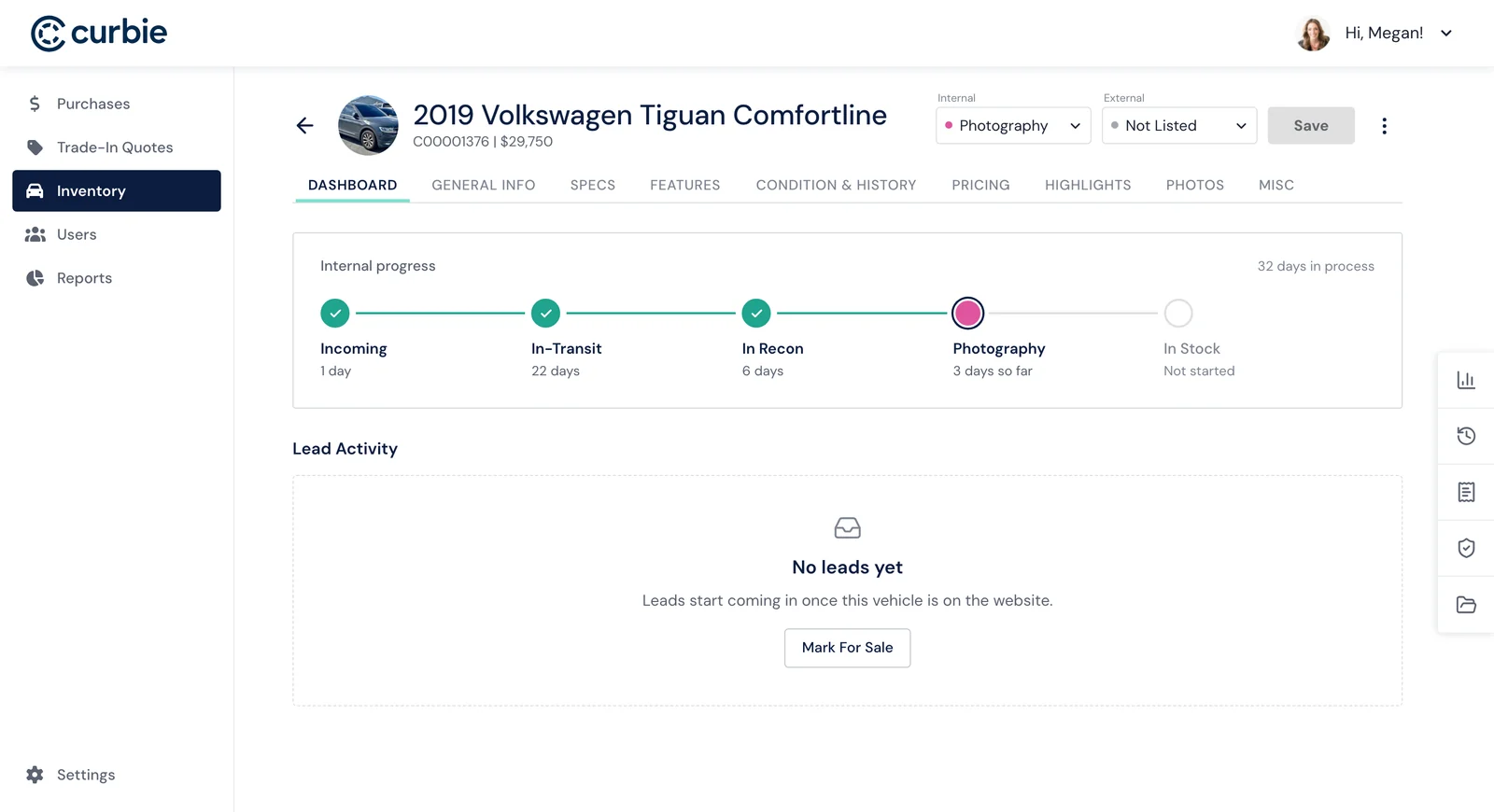
Once it’s listed, that changes to views, days on market, market position, and time in inventory, with a link through to the pricing insight when there is one.
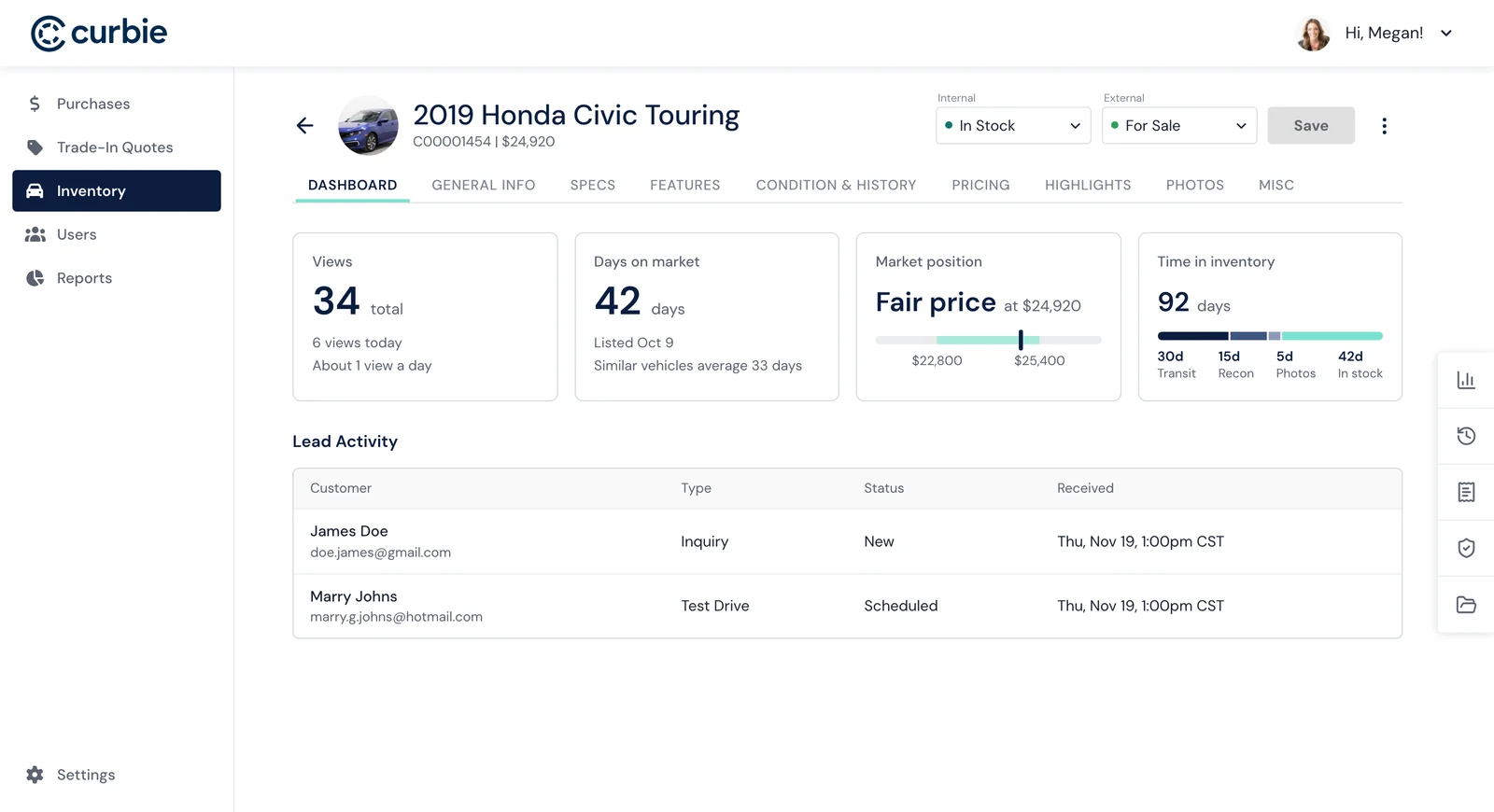
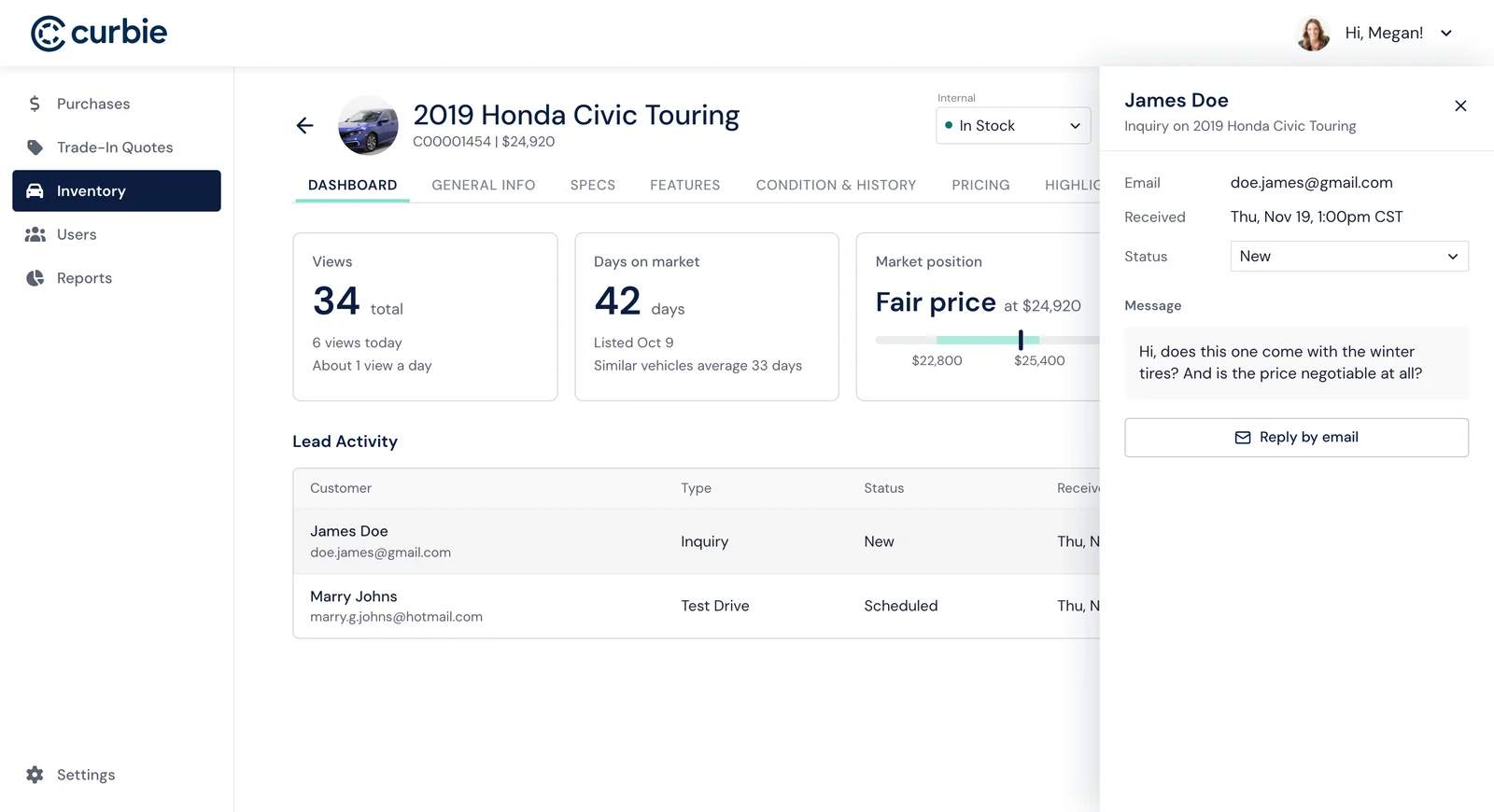
Leads
Inquiries and test drive requests are listed on the vehicle they’re about. Opening one shows the customer’s message and a way to reply. As staff follow up, they move it through each stage until it’s closed.
The side rail
A rail on the right of the profile keeps quick reference panels one click away from any tab. Each one opens over the page, so staff can check a number or a record and get back to what they were doing.
The rail holds five panels. Stats turns the vehicle’s history into answers, from time in each stage and days till sold to views, leads, and failed purchases. History logs every status, price, and detail change automatically, with who made it and any reason given, and exports as a CSV. Cost summary adds up what’s been spent and what the vehicle stands to make. Protection brings the lien, recall, and warranty checks together, so nobody has to dig through a tab to confirm a vehicle is clear. Documents keeps the bill of sale and registration beside the reports from Condition & History.
10. Sale pending
When a buyer reserves a vehicle
The workflow doesn’t end at the listing. Once a buyer reserves a vehicle, editing it could change what they agreed to, and not every purchase goes through.
FlowWhat happens when a buyer reserves a vehicle
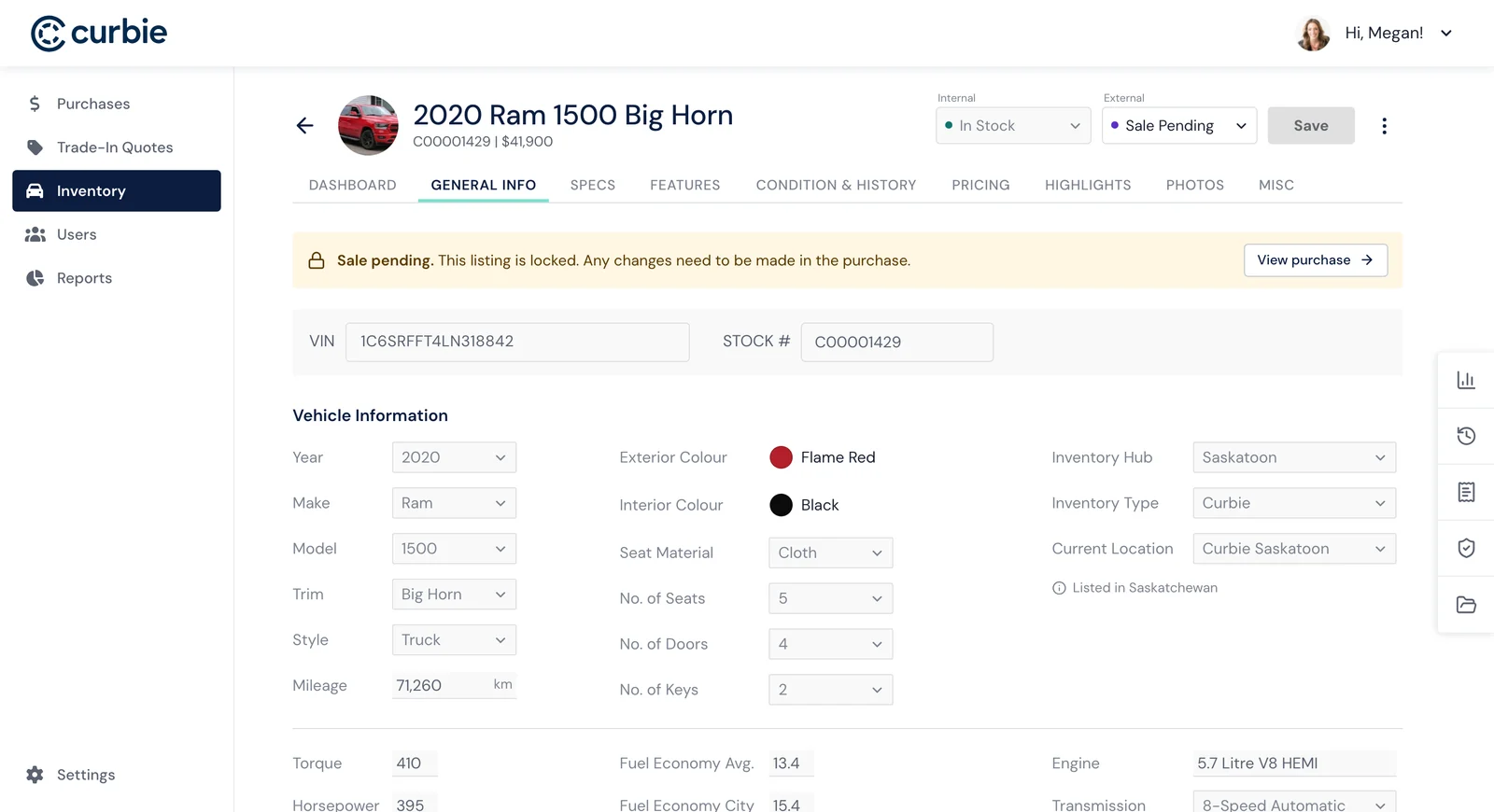
The design decision
A reserved vehicle becomes read-only. A banner says so and links to the purchase, because changes now belong in the purchase workflow.The trade-off
Staff can’t quickly fix even a small mistake on a reserved vehicle from here. That’s worth it to make sure the vehicle can’t change under a buyer.When a purchase falls through
Putting a vehicle back on sale has real consequences, so the confirmation spells them out: the buyer loses their reservation, the vehicle is relisted right away at its current price, and staff can edit it again. Staff can add a reason, which stays with the record.
The design decision
Don’t erase what happened. Each release is recorded as a failed purchase in Stats, so a vehicle that keeps falling through is visible rather than looking like it’s just been sitting.Earned, not assumed
A vehicle can’t be marked Sale Pending until setup is complete, the same as For Sale.After the sale
A sold vehicle shows who bought it and when, with a link to the purchase.
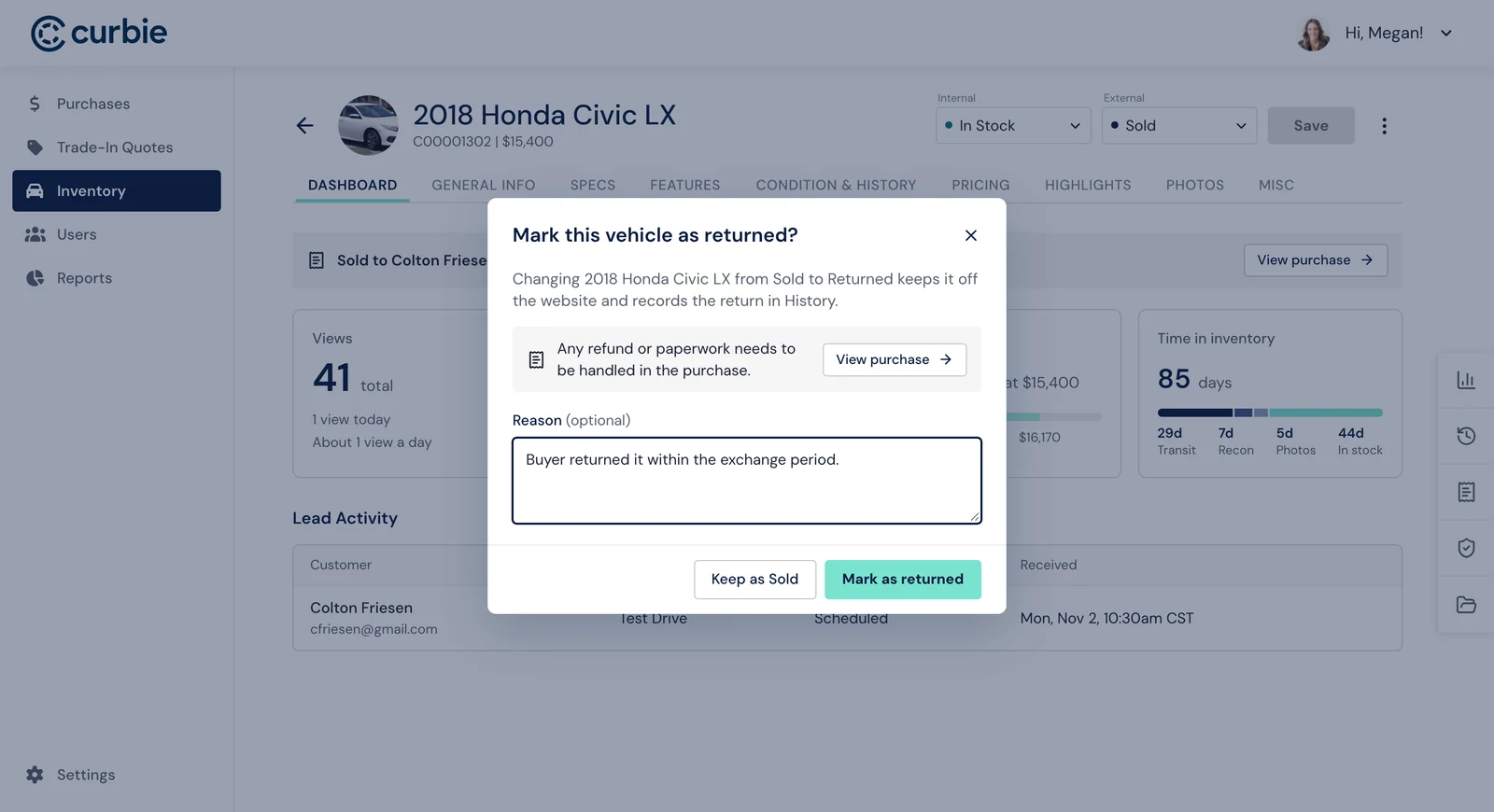
Returns
If it comes back, marking it Returned keeps it off the website and records the return in History, with an optional reason. Any refund or paperwork stays in the purchase.
11. Real-world states
Designing for how the work really goes
A tool people use all day has to hold up when work gets interrupted or something goes wrong, not just on the ideal path.
Unsaved changes
Save only becomes active once something’s changed. If staff try to leave with unsaved edits, a dialog asks whether to keep editing, discard them, or save before leaving.
Mistakes
Deleting a vehicle needs a confirmation, and it can still be undone right after. Removing a photo, file, or inspection can be undone too. Before a vehicle is taken off sale, staff are told what shoppers will no longer see.
Similar vehicles
When a new vehicle is much like one already in inventory, staff can duplicate it. The copy keeps details like the make, model, specs, and features, but leaves anything unique to that car, like its VIN, mileage, price, and photos, blank.
12. Results
What changed
tools needed to manage a vehicle day to day
- ProblemEach team worked in its own tool(s), and none of them were built for the job.
- DecisionDesign for every team on one record, with setup, pricing, records, listing, and tracking in one workflow.
- OutcomeOlder tools were retired, and new hires had one system to learn instead of several.
times a vehicle’s details are entered by hand
- ProblemEach team kept its own copy of a vehicle’s details, so the same information was typed in again and again. Every new vehicle added that work, so growth meant hiring.
- DecisionGive every team the same record, so each detail is entered once, by the team that owns it.
- OutcomeEach vehicle takes less than half the hands-on entry, so the team can handle more vehicles before it needs to grow. With one current copy, there’s also less room for wrong details to reach shoppers.
Less time between acquiring a vehicle and listing it
- ProblemA vehicle can’t sell until it’s listed, and it costs money every day it waits. Re-entering details and chasing handoffs was adding days.
- DecisionStart from the VIN, keep one record, and show every team what’s left to do.
- OutcomeVehicles reach shoppers sooner, with less holding cost on each one.
Beyond the screens
Set the direction
Turned the research maps into the shared picture leadership used to agree on scope and on building a dedicated tool.
Shaped the system
The two-status model became the structure engineering built on, and the shared language teams used to talk about a vehicle.
Aligned the teams
Worked through competing needs with every team, including who owns each detail and who can change it.
13. Reflection
What I learned
Model the problem before the screens.
Separating internal and external status made the rest of the tool easier to design. The biggest decisions in a 0→1 product are often about structure.
Let the tool remember.
With several people working on one vehicle over time, setup progress and change history do work that used to depend on people keeping track.
Internal users deserve the same care.
Someone using a tool all day feels every extra click, so small details have an outsized effect on how fast a team can move.